Canceling Canva Pro takes about two minutes once you're on the right screen — the confusing part is that the "right screen" depends on how you originally paid. This guide covers all three billing paths (Canva.com, App Store, Google Play), tells you exactly what happens to your existing designs afterward, and includes a checklist so you don't get charged again by mistake.
Key Takeaways
- Canceling stops the next renewal; you keep Pro access until your current billing period ends (Design Your Way, 2025).
- Your designs are never deleted. Projects stay in your account after downgrading to Free — but premium elements can show watermarks or become unavailable (Vexly, 2025).
- The cancel button only works on the platform that billed you: Canva's own billing page, the Apple App Store, or Google Play (Techyorker, 2026).
- Canva refunds are handled case-by-case through support, typically only within 14 days of a charge (ChatSlide, 2026).
- If cost is the only issue, downgrading or switching to annual billing can be cheaper than canceling outright (Orbit, 2026).
Before You Cancel: Check Which Platform Is Billing You
This is the step most guides skip, and it's the reason people think Canva's cancel button is "broken." The right cancel option only appears on the billing source that processed your most recent charge — Canva's own site, Apple, or Google (Techyorker, 2026).
Here's how to check:
- Signed up on canva.com or via desktop app → cancel through Canva's Billing & Plans page.
- Signed up via the iPhone app → you're billed through Apple, and must cancel through iPhone Settings.
- Signed up via the Android app → you're billed through Google Play, and must cancel there.
- On a Canva for Teams plan → only the team admin can cancel; individual members can't do it from their own account (Orbit, 2026).
If you're not sure which one applies, check your bank or card statement for whether the charge says "Canva," "Apple," or "Google."
Method 1: Cancel Through Canva.com (Most Common)
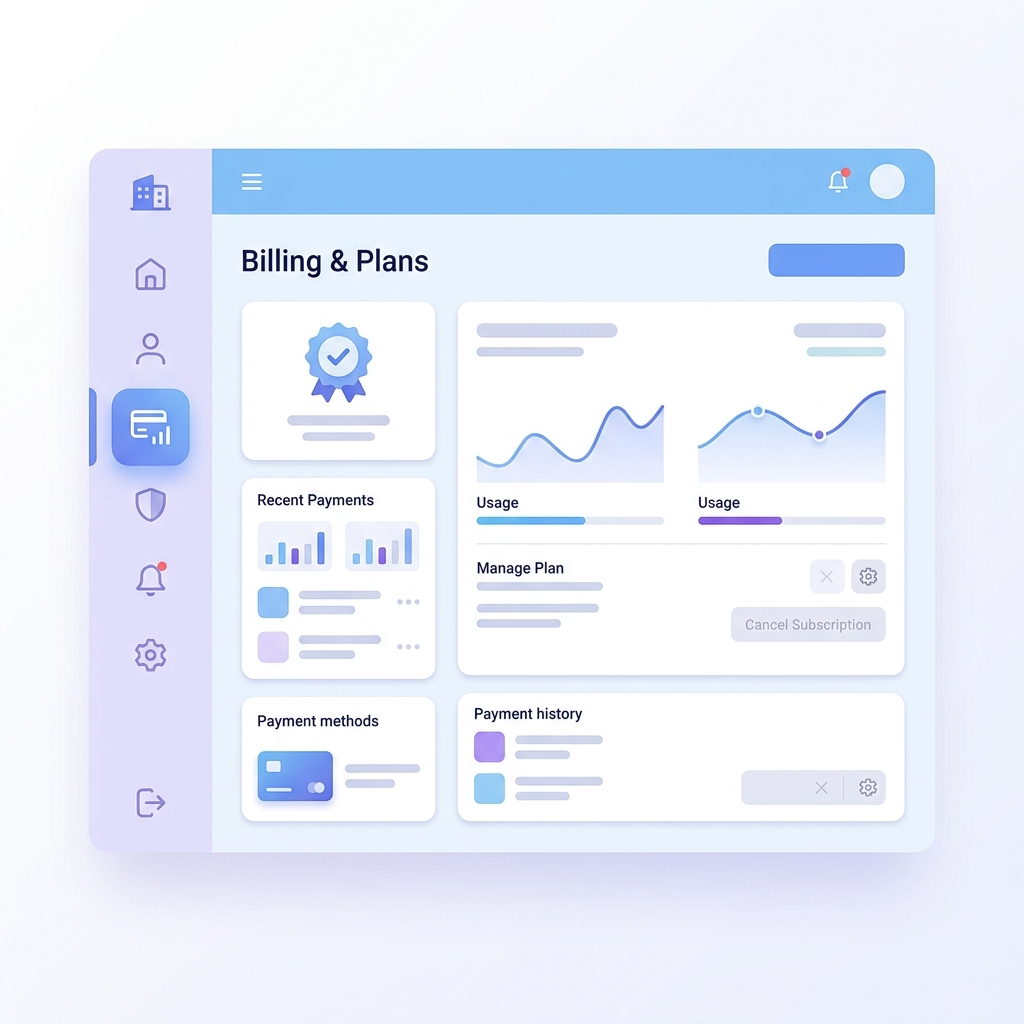
This is the most reliable path if you subscribed directly through Canva's website (Vexly, 2025).
- Log in at canva.com with your usual email/password or Google/Facebook login.
- Click your profile icon in the top-right corner, then go to Account Settings.
- Select Billing & Plans from the left sidebar.
- Click the three-dot menu next to your plan and choose Cancel Plan (or Cancel Subscription, depending on your account type) (Design Your Way, 2025).
- Canva will show you exactly which features you'll lose — Brand Kit, background remover, premium elements — before you confirm (Subger, 2026).
- Select a cancellation reason, click through, and confirm on the final screen. You'll get a confirmation email.
[INTERNAL-LINK: Canva Pro features breakdown → comparison table of Free vs Pro vs Teams]
Method 2: Cancel Through the iPhone App (Apple Billing)
If Apple is charging you, Canva's own cancel button won't do anything — you have to go through iOS:
- Open Settings on your iPhone.
- Tap your name at the top, then Subscriptions.
- Find Canva in the list and tap it.
- Tap Cancel Subscription and confirm.
Access continues until the current billing period ends, same as canceling through the website (Techyorker, 2026).
Method 3: Cancel Through Google Play (Android Billing)
For Android users billed through the Play Store:
- Open the Google Play Store app.
- Tap your profile icon, then Payments & subscriptions → Subscriptions.
- Select Canva.
- Tap Cancel subscription and follow the prompts.
Like Apple, this only cancels future renewals — your current Pro period runs out on schedule.
What Actually Happens to Your Designs After You Cancel
This is usually the real question behind "how do I cancel," so here's the direct answer: nothing you've made gets deleted.
All your created designs remain in your Canva account after you downgrade to Free — you can still open, edit, and export them (Design Your Way, 2025). What changes is access to premium elements inside those designs:
- Premium photos, fonts, and graphics you used while on Pro will typically show a watermark or become locked once you're back on Free (Vexly, 2025).
- Brand Kit settings (your saved logos, fonts, and colors) stop being editable as a kit, though the individual assets stay in your files (Asclique, 2026).
- Background remover and resizing tools become unavailable for new edits, but designs you already exported aren't affected.
- Team members on a Canva for Teams plan may lose access to shared assets depending on who manages billing (Asclique, 2026).
Do This Before You Cancel
Since Pro-only elements can lock up after downgrade, protect your work first:
- Export finished projects as PDF or PNG at full quality while you still have Pro access (Design Your Way, 2025).
- Screenshot or note your Brand Kit — colors, fonts, and logo files — in case you want to rebuild it later.
- Download anything using premium stock photos or templates, since those specific assets may not render correctly once locked.
- Do this before your "Pro access ends" date, not the day you click cancel — you keep full access until that date regardless of when you cancel (Techyorker, 2026).
[INTERNAL-LINK: free background remover tools compared → tools roundup page]
Can You Get a Refund Instead of Just Canceling?
Sometimes. Canva doesn't advertise automatic refunds, but support will review requests made within 14 days of a charge (ChatSlide, 2026). Outside that window, cancellation without a refund is the realistic outcome — you keep access through the period you already paid for, which is effectively how the "refund" plays out anyway.
Cheaper Alternatives to Canceling Completely
If money is the only reason you're canceling, a full cancellation isn't always the best move:
- Downgrade instead of cancel — switch from Teams to Pro, or Pro to Free, without losing your account history (Design Your Way, 2025).
- Switch to annual billing — the per-month cost drops meaningfully compared to paying monthly (Orbit, 2026).
- Split a Teams plan — Canva for Teams lets you share Pro access across up to 5 people at a lower per-person rate (Orbit, 2026).
If none of those fit and you want to explore Pro for free instead, we cover every legitimate option — education, nonprofit, and startup programs included — in our guide to getting Canva Pro free in 2026.
Frequently Asked Questions
Will I lose my designs if I cancel Canva Pro?
No. All designs stay in your account after downgrading to Canva Free — you can still view, edit, and export them (Design Your Way, 2025). Only Pro-exclusive elements inside those designs may show watermarks or become locked.
Does canceling take effect immediately?
No, unless you're canceling a free trial. For paid subscriptions, you keep full Pro access until the end of your current billing period, then the account automatically reverts to Free (Design Your Way, 2025). Trials are the exception — canceling a trial usually ends access right away (Vexly, 2025).
Why can't I find the cancel button in Canva?
You're likely billed through Apple or Google rather than Canva directly. The cancel option only appears on whichever platform processed your most recent charge (Techyorker, 2026), so check your iPhone Settings or Google Play subscriptions instead of Canva's site.
Can I get my money back after canceling?
Sometimes. Canva reviews refund requests made within 14 days of the charge (ChatSlide, 2026); outside that window, you simply keep access through your already-paid period instead of receiving a refund.
What happens to my Brand Kit after I cancel?
Your Brand Kit's individual assets (logos, images, fonts you uploaded) stay in your files, but the ability to apply them as a connected "kit" across designs is a Pro feature and stops working on the Free plan (Asclique, 2026).
Bottom Line
Find out who's actually billing you (Canva, Apple, or Google) before you go looking for the cancel button — that alone solves most of the confusion. Export anything built with premium elements before your access date, and remember your designs themselves are safe either way. If you're canceling purely over cost, downgrading or switching to annual billing is often the better trade.
Sources: Design Your Way (How to Cancel Your Canva Subscription, 2025), Techyorker (How To Cancel Canva Pro Subscription?, 2026), Vexly (How to Cancel Canva Pro Subscription in 2025), Orbit (How to Cancel Canva Pro Subscription, 2026), ChatSlide (How to Cancel Canva Subscription & Get a Refund, 2026), Subger (How to Cancel Canva Pro, 2026), Asclique (How to Cancel Canva Subscription in Minutes, 2026).
Ready to outrank your competition?
We help Nepali businesses build high-converting websites and dominant SEO strategies tailored for the local market.
Last updated: July 22, 2026